While I was at school I’ve always had a messy folder structure. All my files were in the downloads folder with unchanged filenames. They followed niether naming convention nor did they have any structure in the way they were ordered. Most of the files were reports which I had to fill out with a PDF annotator.
As I switched from windows 11 to a linux Peppermint (a debian based distribution with the XFCE GUI) and then a more low level distribution I started having more problems.
As I switched from windows 11 to linux and subsequently started using the terminal some problems started to arise. First of all the downloads folder was getting more bloated as collected more and more files which made the navigation a pain. But the biggest issue for me were the filenames which were written
The filenames were given on windows where having whitespaces is not really an issue but
The problem is that in the terminal any space is seen as a separator between two different attributes in a command. It is possible to use files with spaces in the filename but you need to escape every space for it to work. This is not great
Cleaning Up My Files
Neglecting So I slowly started cleaning up my files, puting them in their individual folders that linked to the subject. I also started using a naming convention, essentially just using lowercase and “-” for whitespaces.
These changes improved a lot but I was still able to improve the efficiency. This is where I started learning more about bash scripts to automate repetitive actions in linux. One such action was taking a file from the downloads folder, renaming it and then moving it to its repsective folder. Something that would make it way more efficient was to assume that I would only download files from one subject in that said lesson. So now I have to find a way to import my timetable into my laptop and then..
Overview of the Script
Since the creation of the script I cleane There are multiple scripts that lead to the final product.
-
school-cd-script.sh - cd into a given directory
-
school-get-lesson.sh - get the current lesson based on the time
-
school-get-time.sh -
-
school-move-files.sh - rename and move files to a folder of the current lesson
-
school-open-files.sh - open a file in various programms
-
school-set-lesson.sh - overwrite the current lesson
-
school-terminal-script.sh - all of the functionalities but in the terminal
.last_visited_dir .marked_directories
How It Works
The UI is provided by dmenu which is a great piece of software for these kinds of thigs. You can pipe in a list
echo -e 'item1\nitem2\nitem3' | dmenu
A window will appear where you can search through the given options, select and then press enter to print out the selected object.
The cool thing about bash is that you don’t have to echo in prewritten text, you can pipe another command into dmenu.
For example you can pipe in a find command to display all the files in a given directory.
Patches for Dmenu
Dmenu is a suckless program which means you can patch it pretty easily. There is a list of patches made by the comunity which you can add to your own dmenu and then recompile. To make this document opening script have a more usefull
I use these patches:
These are great patches which I love. I’ve also portet them to wayland which you can read about here.
f
Open Files
The main use of the script is to open files as fast as possible. To do that I
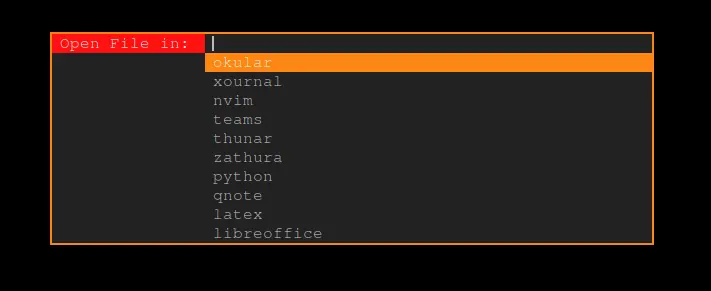
The two main scripts are called with a shortcut (Shift + Alt + L) and (Shift + Alt + M) respectively. When the script is run it first checks which lesson we are in, if the lesson is overwritten it will take that one. A dmenu popup is started which shows
Move Files
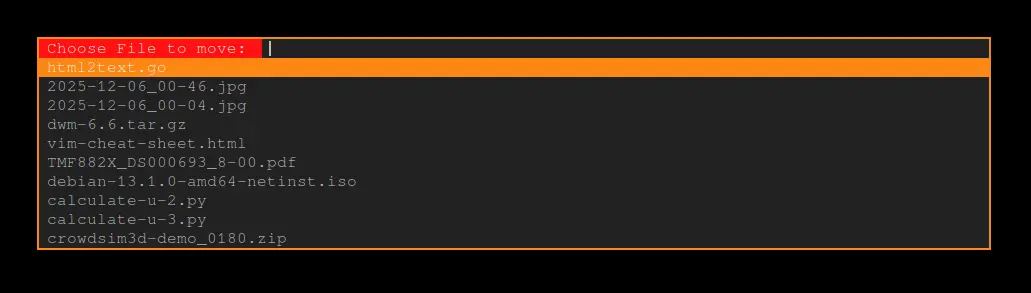
To move a file from the downloads folder into a specific folder you need to press Shift + Alt + M.
A menu appears which lists all of the files in the downloads folder sorted from newest to oldest.
Press enter to choose the selected file and you will be prompted to rename it.
Type a new name or leave it blank to keep the name.
To save some time the spaces are converted to ‘-’ dashes.
Then you will be asked to select where you want to move the file.
This uses the same logic as … .
After doing all of these steps the program will move the file to the selected place. Here you can also add some custom functionalities. For example I added that for all PDF files it will remove the original title. I did this because when using okular it showed the original name and not the filename which was confusing.
Last updated on 25 December 2025 by Leo Martin
Related Topics: